
The Appointments Calendar
See every booking in one view, whether it came from your form, a phone call or a walk-in, by week or by month.
The Calendar is where you run your week. Every booking that comes through your Avenue form lands here automatically, next to the walk-ins and phone bookings you add yourself. Open Calendar from your dashboard sidebar.
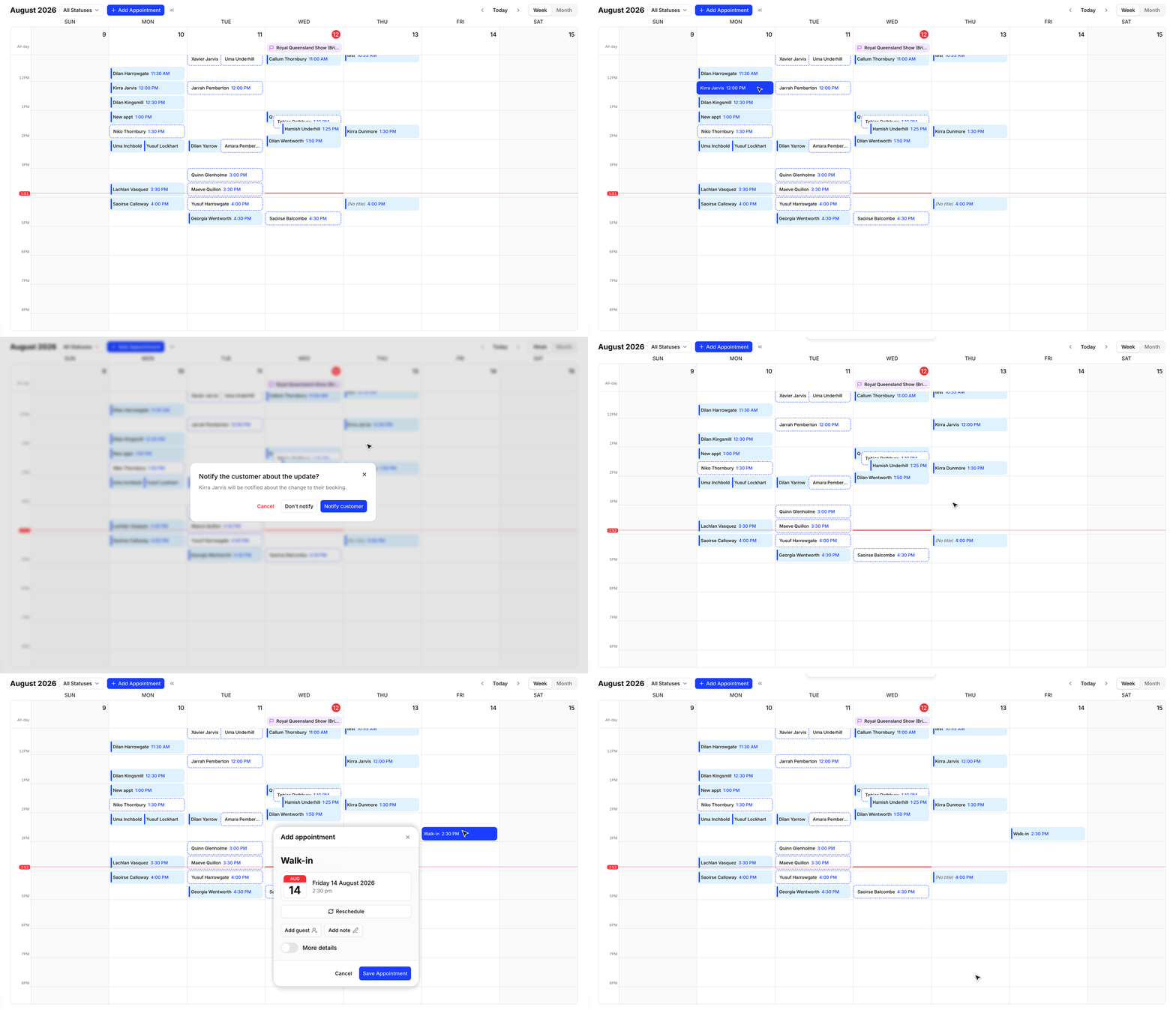
- See every booking in week or month view
- Filter by location or booking status
- Reschedule a booking by dragging it to a new time
- Change a booking's status: Pending, Confirmed, or Cancelled
- Add walk-in and phone bookings in seconds
- Let Avenue text and email your customers automatically when things change
Views and filters
Flick between week and month view from the top of the page. Week view is your day-to-day workspace, showing each booking in its time slot. Month view is for planning ahead and spotting busy patches early.
If you run more than one location, use the filters to look at one site at a time. You can also narrow the view to a single status, handy for a morning check of anything still sitting on Pending.
Next steps
Managing Bookings
Reschedule, update, and add bookings from the calendar
Notifications & Reminders
The texts and emails Avenue sends your customers automatically
Support
Contact Avenue support at info@avenue2.au if you need help with your Calendar.