
Set Booking Limits Per Day
Cap how many bookings you take each day and how far ahead customers must book, with Max Bookings Per Day and Booking Notice.
Booking Limits help you manage your business's capacity with two settings:
- Max Bookings Per Day - Cap how many appointments you accept each day
- Booking Notice - Require customers to book a certain time in advance
Booking Frequency
Set a maximum number of appointments per day. Once the limit is reached, customers can't book that day, even if time slots are still available in your Availability Hours.
This is useful when you're running with fewer staff, at reduced capacity, or want to keep your workload manageable.
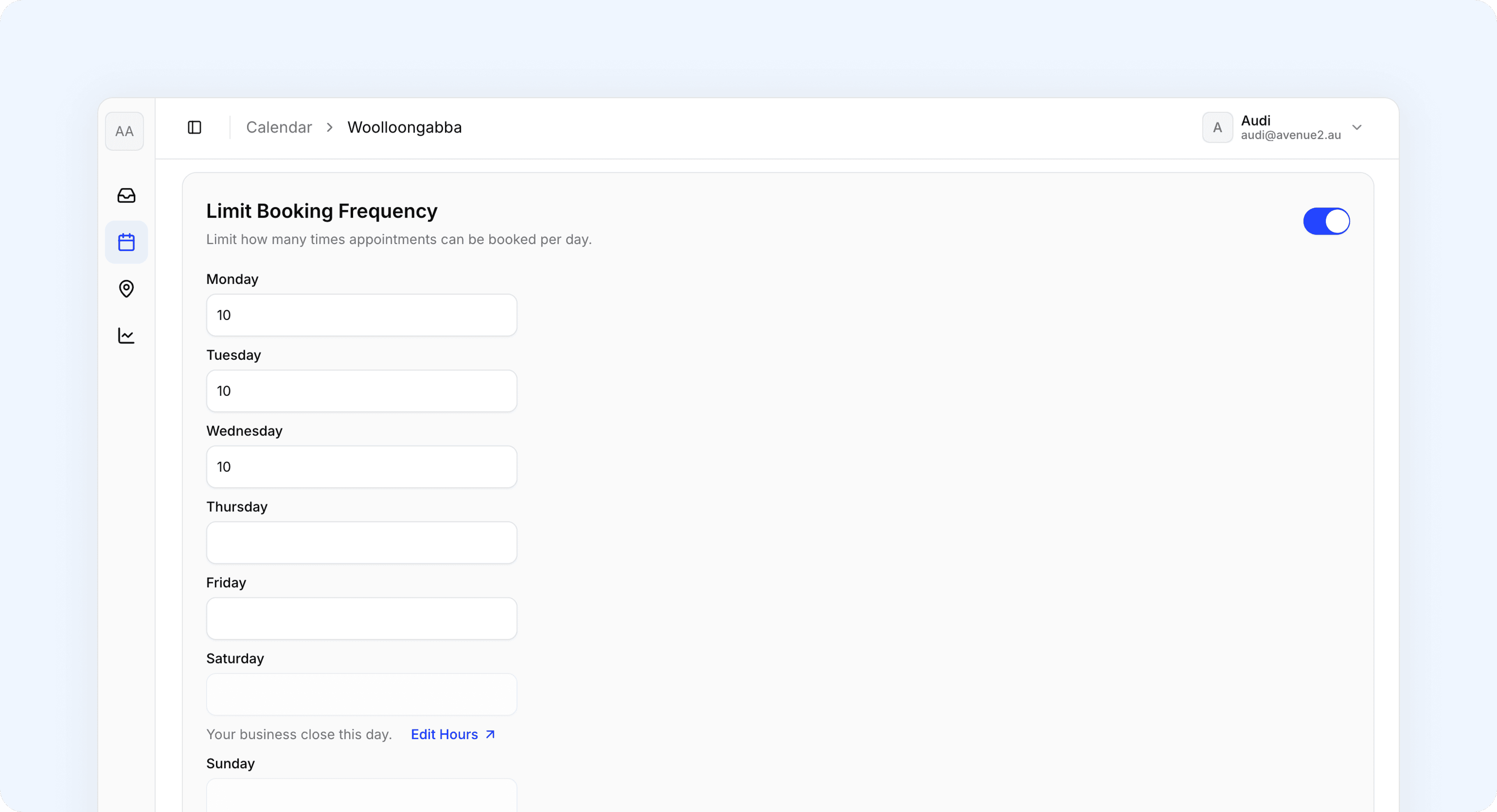
How It Works
For each day of the week, enter a number in the field:
| Value | What it means |
|---|---|
| (empty) | Unlimited bookings |
0 | Closed (no bookings accepted) |
Any number (e.g., 8) | Maximum 8 bookings that day |
Important: Limits apply to every occurrence of that day. A Monday limit of 8 means every Monday has a maximum of 8 bookings. Changing a limit doesn't affect existing bookings, only new ones.
Setting a Daily Limit
- Navigate to Calendar Settings > Booking Limits > Limit Booking Frequency toggle
- Find the day you want to limit
- Enter a number or leave empty for unlimited
- Click
Save Changes
Example
A business at full capacity Monday-Thursday, reduced staff Friday, closed Saturday:
| Day | Limit | Why |
|---|---|---|
| Monday | 10 | Full capacity |
| Tuesday | 10 | Full capacity |
| Wednesday | 10 | Full capacity |
| Thursday | 10 | Full capacity |
| Friday | 5 | One mechanic off |
| Saturday | 0 | Closed |
| Sunday | (empty) | Closed via Availability Hours |
Booking Notice
Require customers to book a minimum time in advance. This gives you time
to prepare for appointments, order parts, or schedule staff.
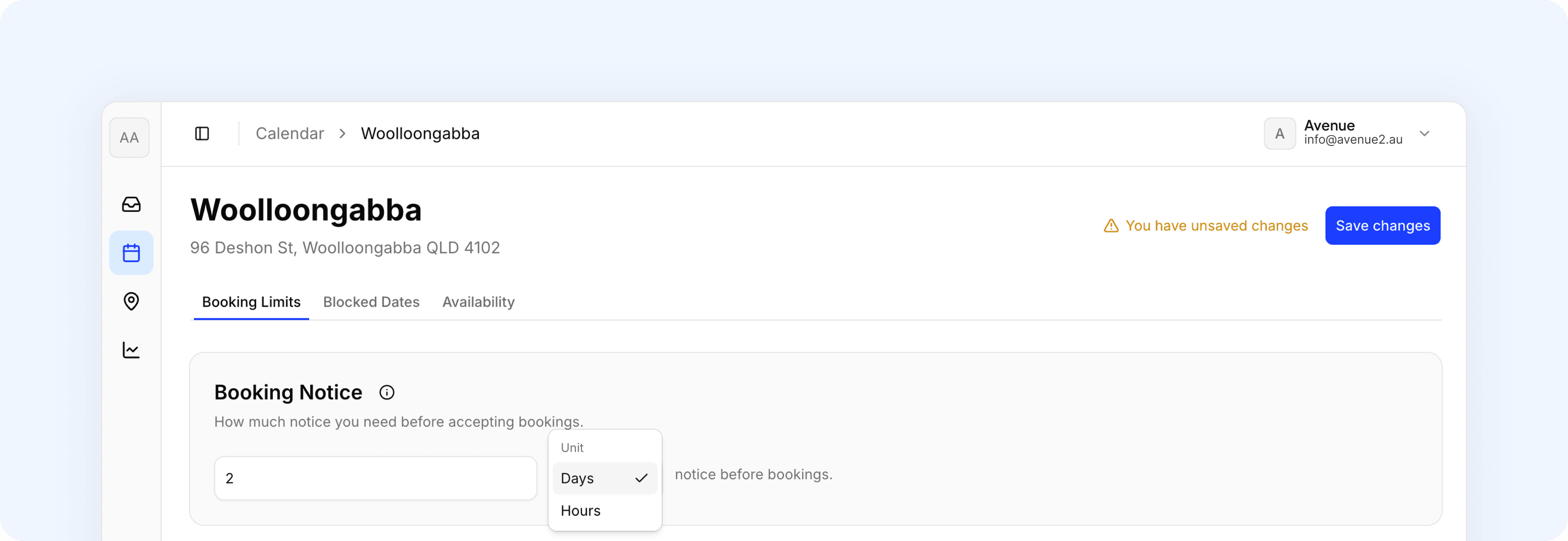
Setting the Booking Notice
- Navigate to Calendar Settings > Booking Limits >Booking Notice
- Enter a number in the notice field
- Select Days or Hours from the dropdown
- Leave empty to allow same-day bookings
- Click
Save Changes
Support
Contact Avenue support at info@avenue2.au if you need help with booking limits.
Block Out Dates and Public Holidays
Close specific dates for public holidays, leave or training days. Avenue loads the public holidays for your state automatically.
Connect Avenue to ServiceM8
Send the bookings Avenue captures into ServiceM8. Generate an API key in your ServiceM8 dashboard, send it to the Avenue team and we connect the rest.