
Setup
Add a Booking Form to Wix
Add the Avenue booking form to your Wix site with Custom Code. You need a Premium Wix plan with a connected domain.
This guide shows how to add the Avenue booking form to your Wix website.
Prerequisites
Before you begin, make sure you have:
- Access to your Wix account dashboard
- Owner or admin access to the site
- A Premium Wix plan (Custom Code requires a paid plan with a connected domain)
- Your Avenue embed code (sent to you via email)
How It Works
The Avenue embed code is a script that needs to be added to your website's header. Once added, the booking form will appear as a floating button on your site.
Your embed code looks like this:
<script src="https://embed.avenue2.au/loader.js" data-public-token="YOUR_TOKEN"></script>Wix has a built-in Custom Code feature that makes adding it easy.
Adding the Embed Code
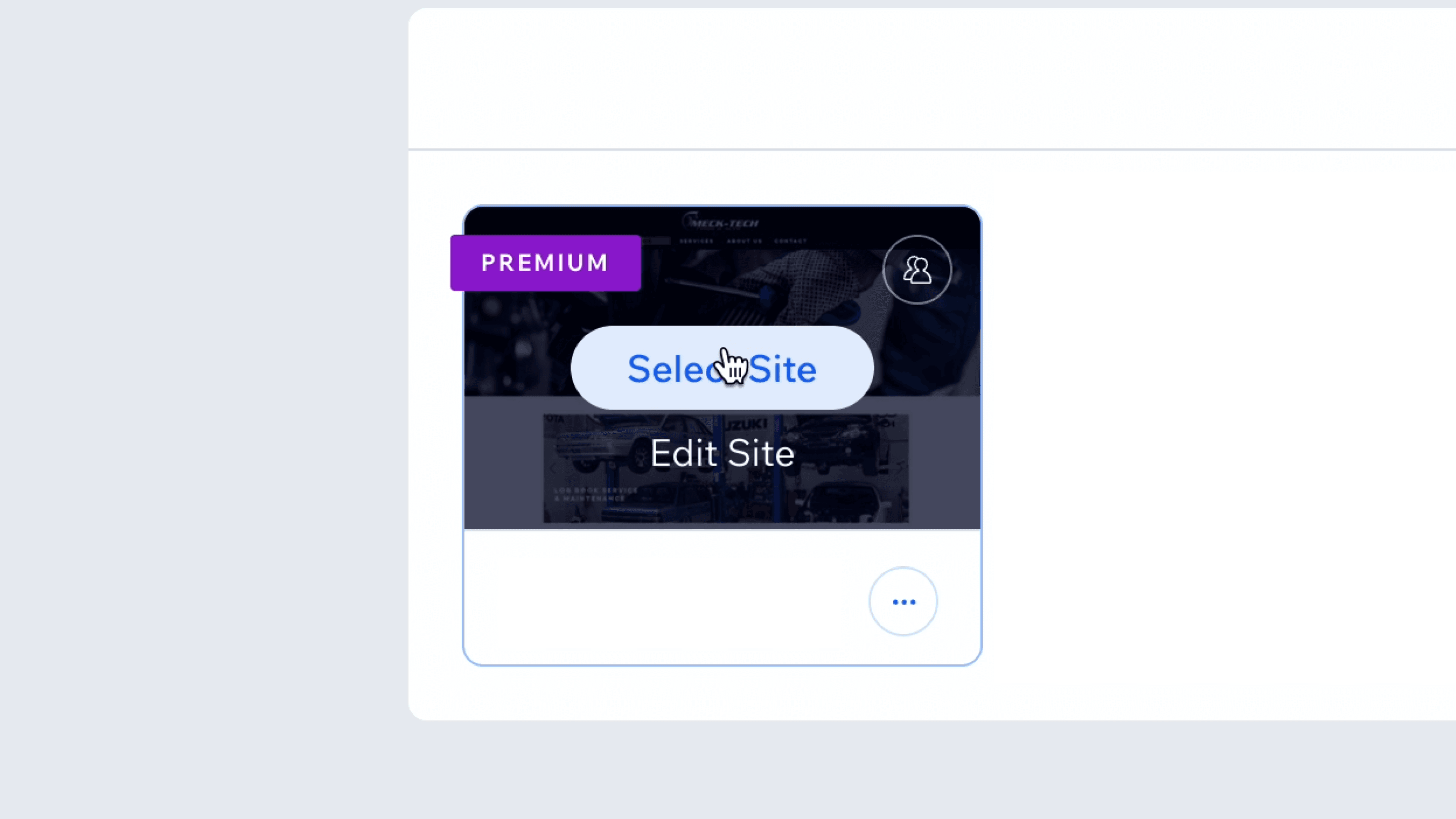
Step 1: Select Your Site
- Log in to your Wix account
- From the dashboard, select the site you want to add Avenue to
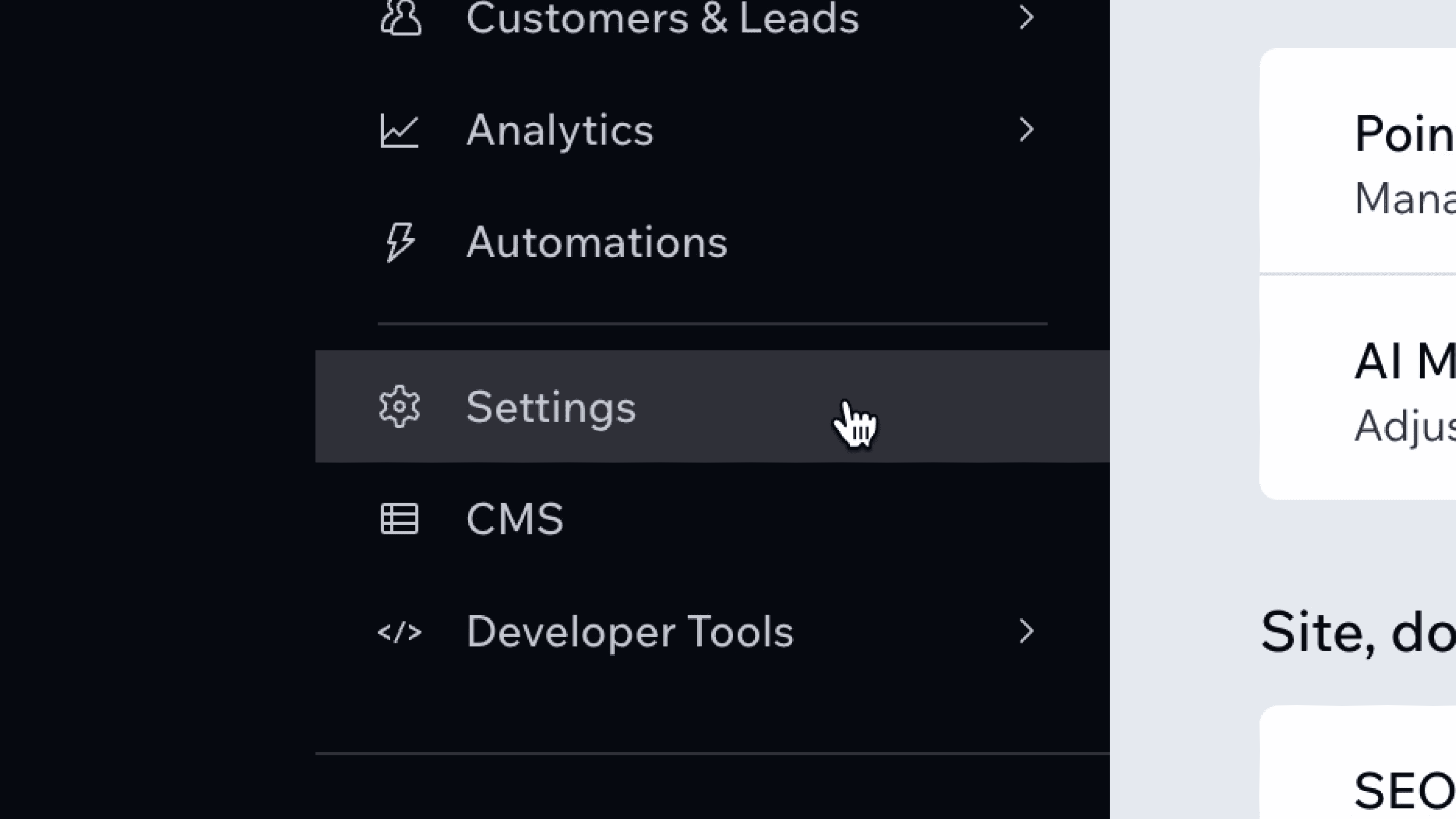
Step 2: Open Settings
- In the site's dashboard menu, scroll down and click Settings
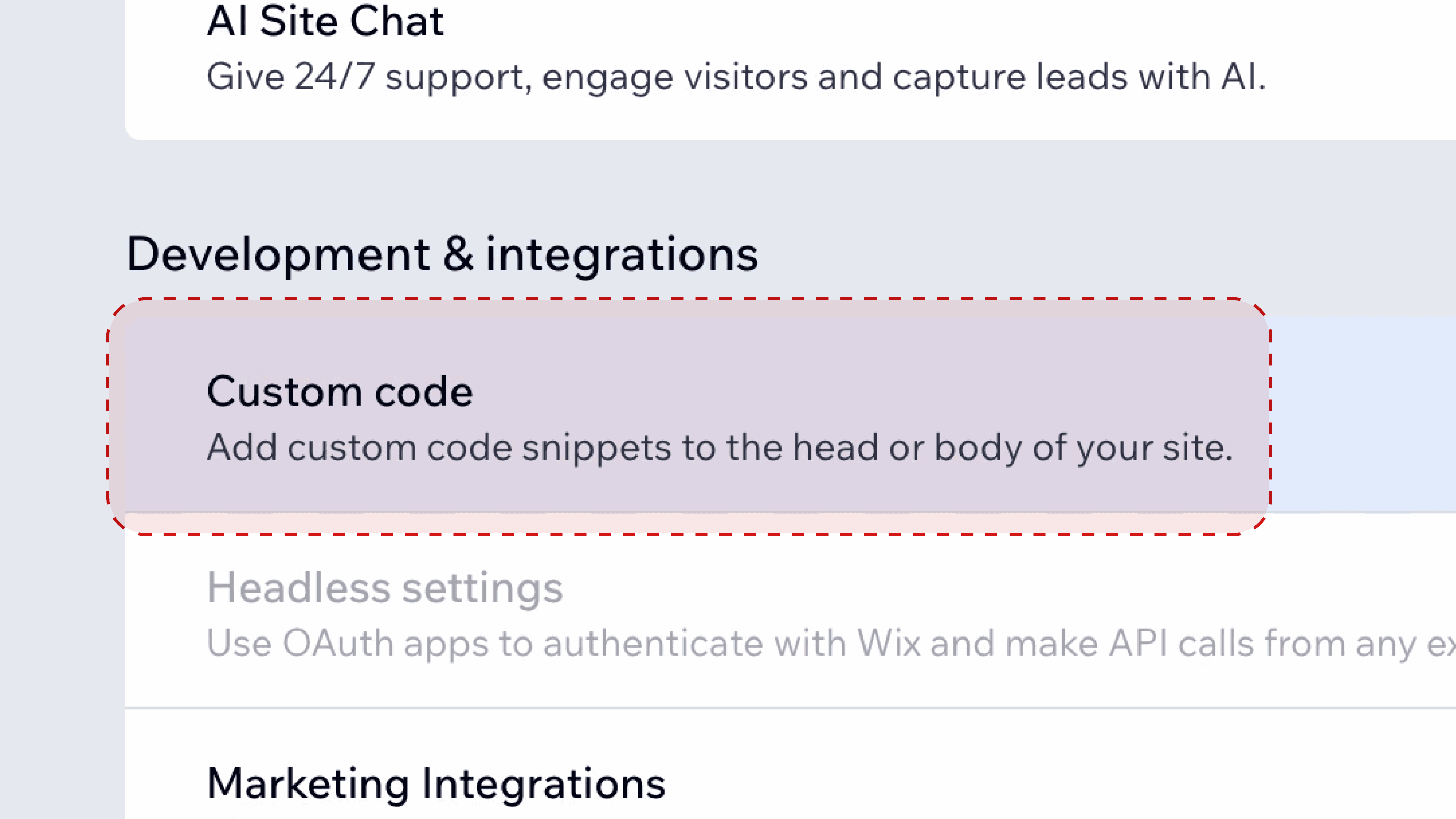
Step 3: Open Custom Code
- In Settings, scroll to the Development & integrations section
- Click Custom code
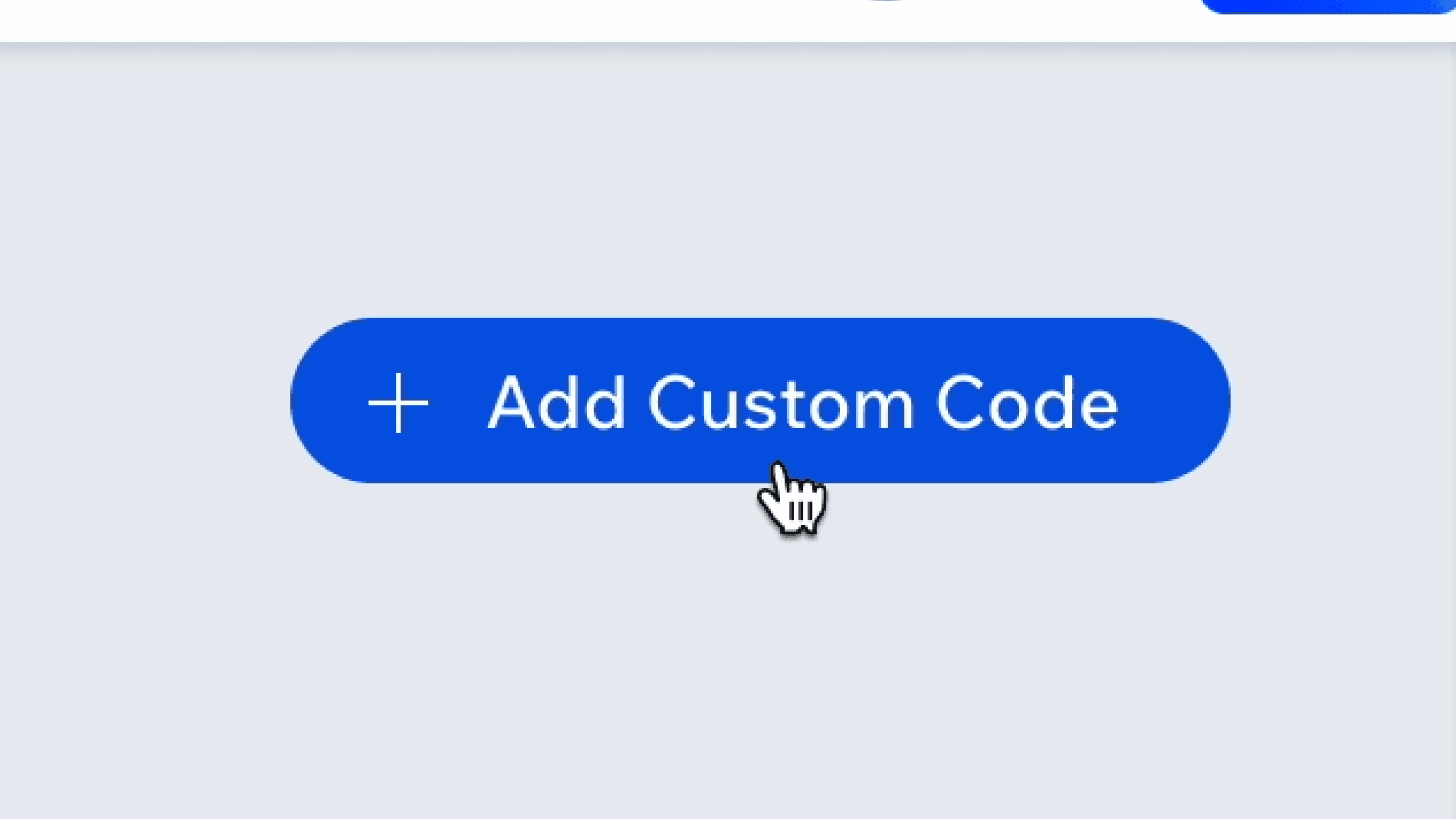
Step 4: Add a New Code Snippet
- Click + Add Custom Code in the top right
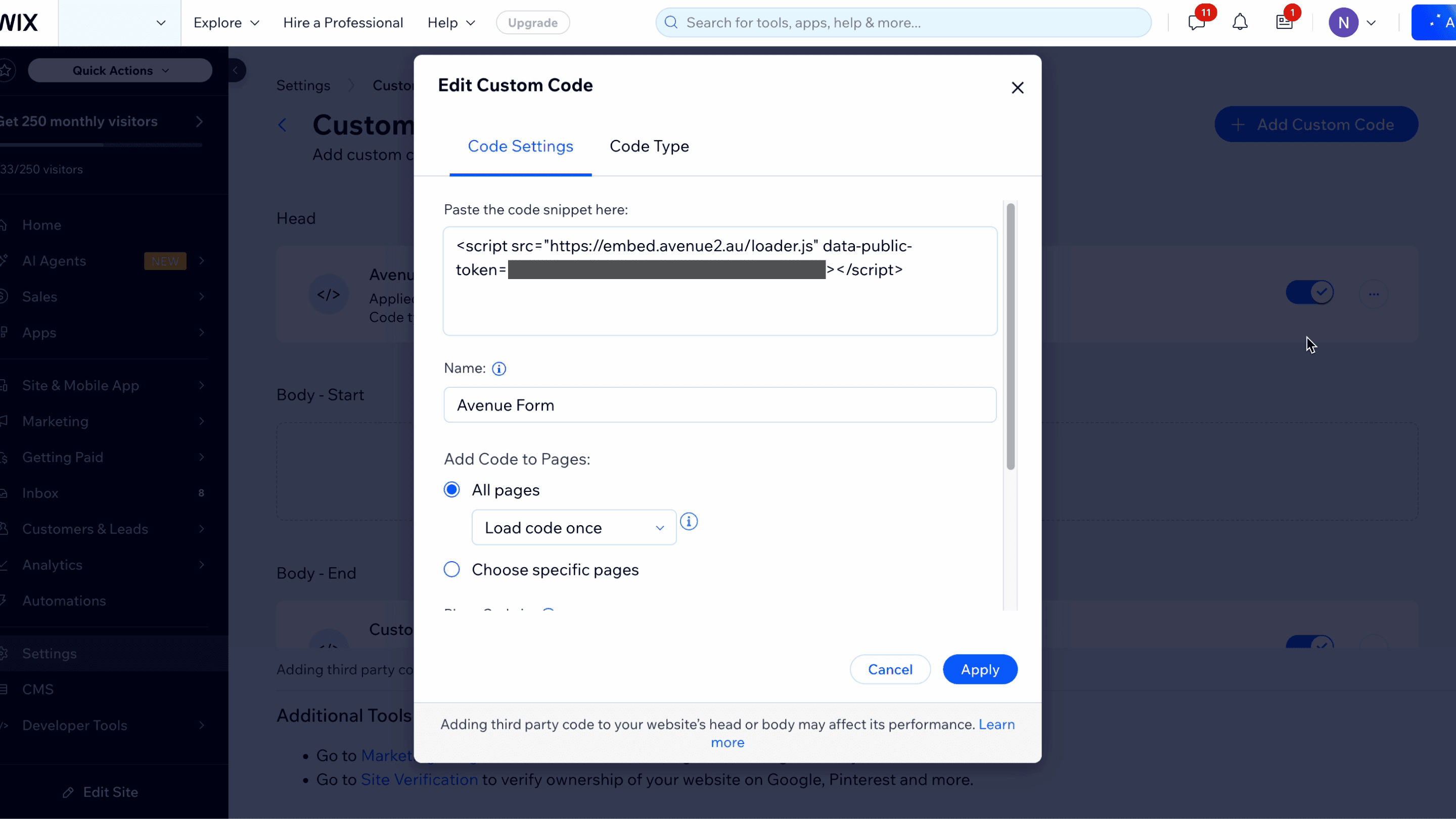
Step 5: Paste the Embed Code
- Paste your Avenue embed code into the Paste the code snippet here field
- In the Name field, enter a name such as "Avenue Form"
- Under Add Code to Pages, select All pages and leave Load code once selected
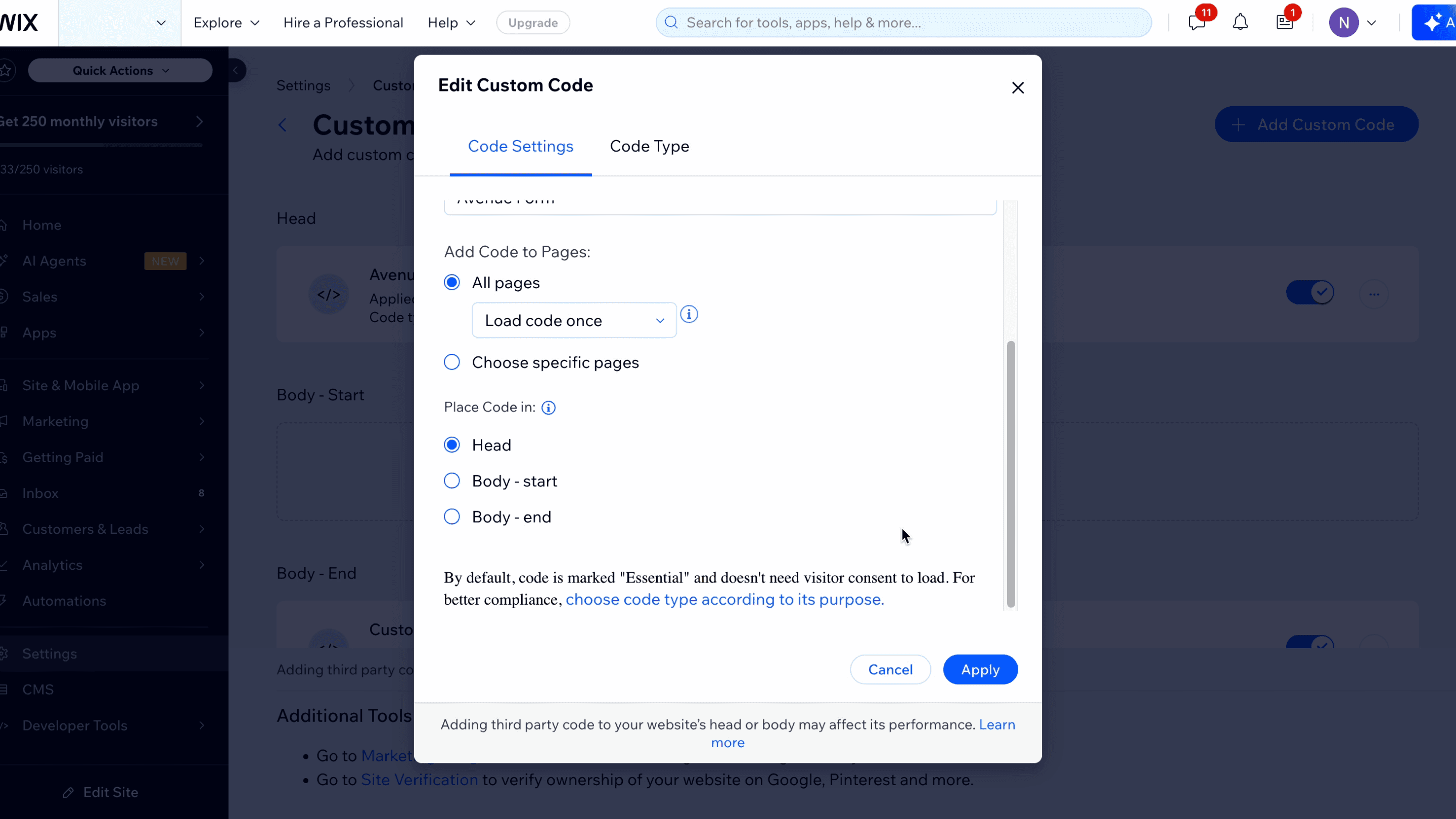
Step 6: Set the Placement
- Scroll down to Place Code in
- Select Head
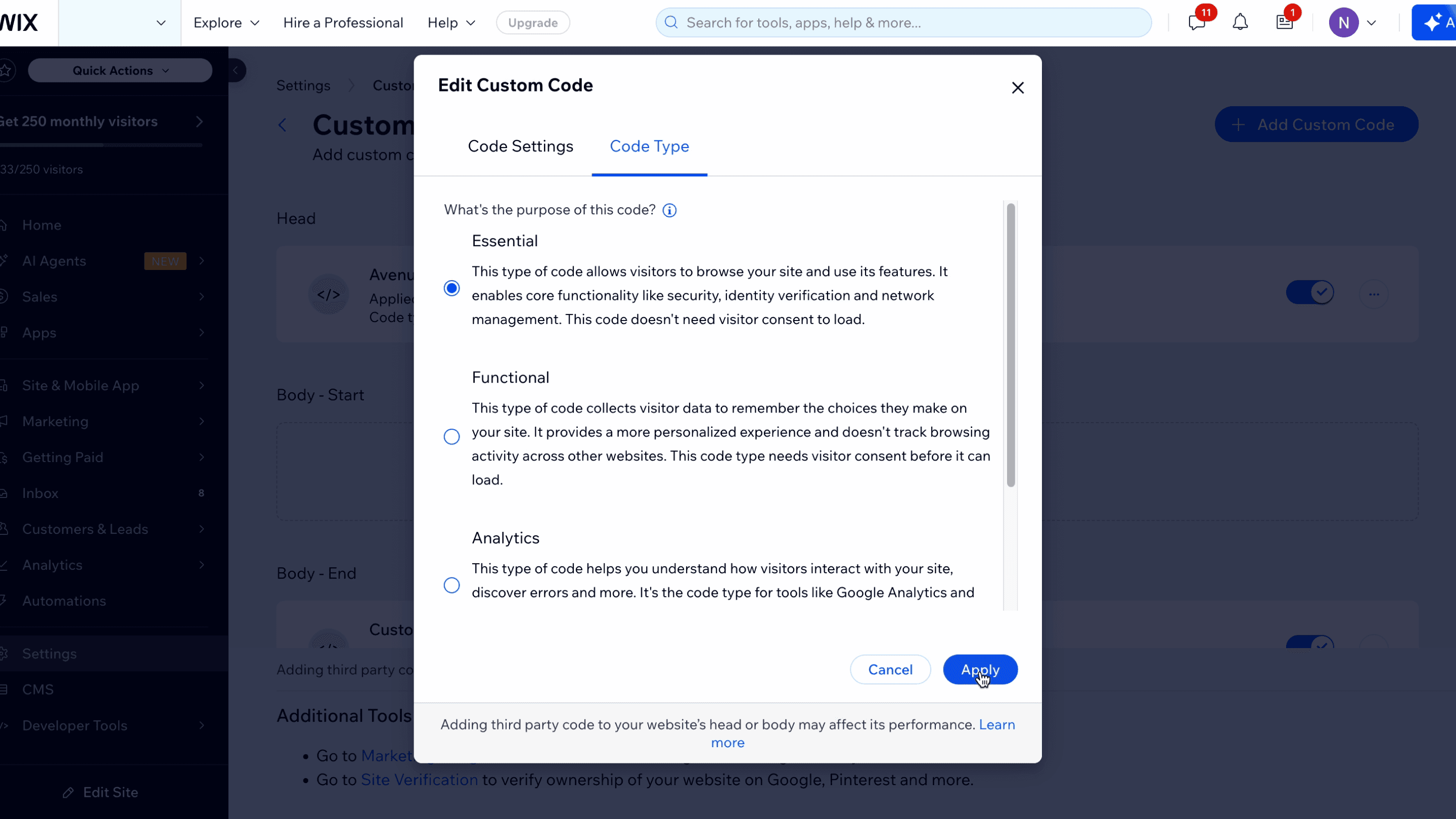
Step 7: Set the Code Type
- Open the Code Type tab at the top of the dialog
- Select Essential, since the Avenue form is required for visitors to book and doesn't need cookie consent
- Click Apply
Step 8: Verify
- Make sure the custom code toggle is enabled
- Visit your published website
- Refresh the page
- You should see the Avenue booking button appear
Support
Contact Avenue support at info@avenue2.au if you need help adding the embed to your Wix site.